

Have you been wanting to set up a google meet, online meetings but do not know how to do that?
Worry no more, as this content provides you the most efficient step by step and quick methods to set up google meetings on your phone, for virtual meetings with your loved ones or co-workers.
What is Goggle Meet?
Google Meet is one of the most popular video conferencing services, with a user-friendly UI and a range of features. The video calling tool integrates seamlessly with other Google products like Gmail and Google Calendar which makes the process of scheduling and joining meetings simple.
The app works effectively on every smartphones, laptops, desktop computers and its available for freee to use and download both on playstore, applestore and even on the web.

Here is how to setup Google Meet meeting on your phone
Easy and simple stes on how you can set up Google Meet meeting on your phone without stress and difficulties on your phone or laptop.
1. Download and install Google Meet app
Google Meet app can be found and downloaded on Google Play store. It is available for Android phone and even ios apple device.
2. Open Google Meet and tap “New Meeting”
Opening the app on your phone, then proceed to click on New Meeting to start the process for setting up a new meeting on your phone.

3. Set Up Google Meets On Your Phone
Click on “create a new meeting” if you want your meeting to start immediate, or “select schedule meeting” to schedule your meeting for a later time with Google calendar.
Read Also: Facebook Ads Or Google Ads: Which One Is The Best For Business Advertisement
4. Add Meeting Details
Enter meeting name, date, time, and duration of the meeting if you are scheduling on Google calendar.
5. Add Guest to the meeting
Add attendees emails, people who will attend the meeting or share the meeting link to them
6. Save Your Meeting Settings
Tap “Save” to save and schedule your meetings
Note: This method works for both iphone users and android users, for people who want to create through website can visit google meet official link here – meet.google.com.
How to use Google calendar to setup google meet & schedule meetings
In case you have a meeting for a later date or period and you want to create a google meeting schedule or reminder for the day then you need to known how to use google calender to schedule your Online meetings.
Read Also: Top 5 Recommended & Best Email Marketing Website To Use In 2025
- Download google calendar app or goto the official website calendar.google.com
- Tap on the date you want to schedule for
- select the time from the list
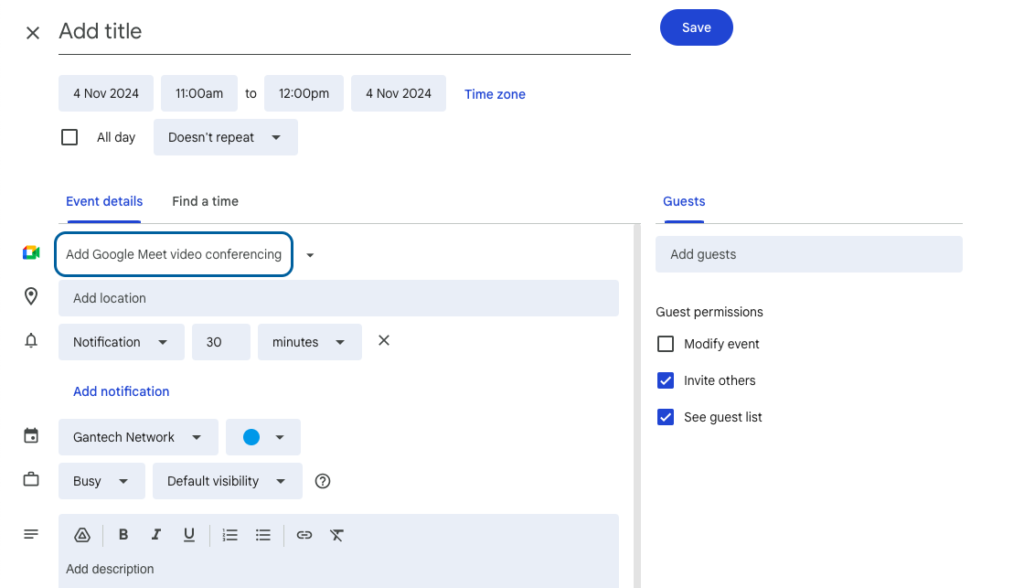
- Add your meeting info to set it up (title, descriptions, time)
- Tap “Add video conferencing” to add google meeting to the calender event
- Add guest emails to send invites and reminder to people who will attend
- save and send the notifications to the participants
Conclusion:
Goggle Meet is known to be used for hosting virtual meetings and video conferences, conducting remote work and collaboration, connecting with colleagues, clients,
or students from different locations, sharing screens and documents during meetings, recording meetings for later reference and more.
By Knowing how to use it to create and schedule meetings on your phone, will help you become more productive and make your presence and collaborations more unique and better than before.


