


In today’s digital world, having your house address or office address on Google Map is very important for easy direction and visibility.
As a home owner, putting your address on Google map makes it fast and reliable for people, families, or friends to make their way directly to your door steps without any difficulties.
For business owners, having your address on Google map can boost your local search presence, attract new customers and improve your visibility and customers.
Adding your location to Google map is not just easy, it is a powerful tool for both business and personal use.
Why Add Your Home or Office Address On Google Map
Adding your address or location to google map has several advantages:
- Improved Visibility: When you add your home or office address on Google map, it make it easier for people to find you. It ensures that anyone looking for your address on the map can easily locate you.
- Accurate Directions: Google map gives accurate step-by-step to your location. Adding your address will help prevent confusion or missed appointments for people visiting your place for the first time.
- Improve Local SEO: For business owners, adding your address improves your local SEO, meaning that your business is more likely to show up when client or customers are nearby looking for the services or products you offer.
- Customer Trust and Credibility: Adding your office address on Google map adds legitimacy to your business. People tends to trust a business that have physical presence on the map, which increases your business credibility.
Step-by-Step Guide on How to Add Your Home Address on Google Map using the app
Follow the steps below to add your home address on Google map:
Step 1: Open Google Map App
To start, install the Google map on your phone. Google map app is available on Playstore or Apple store for download.
After installing the app, open it and sign in with your Google account, then click on the user profile

Step 2: Click on settings
After clicking on the user profile, various option comes up, from the option, click on Settings. The setting options has several features related to the map.

Step 3: Click on Edit home
After clicking on the settings, the next step is to click on Edit home or work.

After clicking on the Edit home or work option, there are 2 labels available in the option; The Home label and The Work Label. Choose the Home label to add your home address.

Step 4: Get Your Address
The next step is to get your home address. There are two methods on the Google Map to get your address, the first is Current Location and the second one is Choose on Map.

Use your Current Location Method
If you are at home, you can select the first option, Current Location, then click Continue.
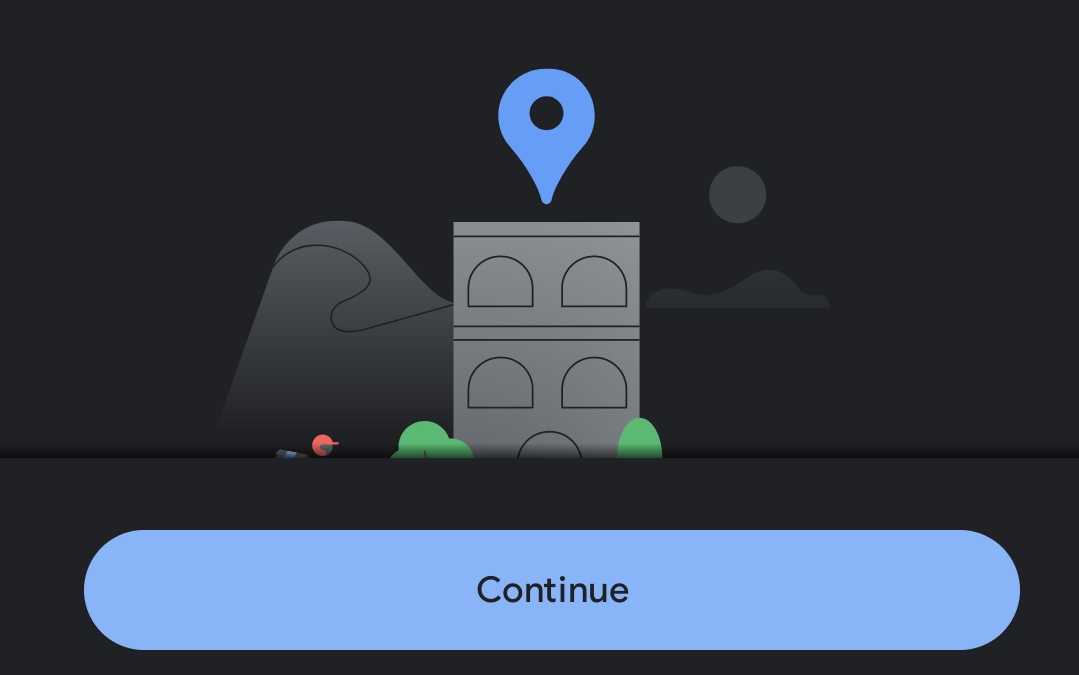
This step allows Google map to trace your current location, therefore, your current location is tracked and displayed. Then you can save it.
Read Also: Google Lens: How To Use It To Find Anything Online
Choose on the Map Method
Another option to add your address is the Choose on Map option. For this method, you simply place a Marker at the desired location, representing your home. After placing the marker, you can save it.

Step 5: Set Home
Google Map make use of Location permissions to show the exact location of a place. Google map depends on GPS (Global Positioning System), sensors and network routing address to find the exact location of a place. Once the location is traced, save it, and you have your home address set on Google map forever.
Simple Steps On How To Add Your Office Address on Google Map
The best way to add your office address on Google map is to make use of Google My business. This enables customers to see your address directly on the Map when searched for on google search or google map.
How to Add your Office Address On Google Map using Google My Business
The first step in adding your office address is to have a Google My business Profile. To create an account, go to the website google.com/business and log in with your Google account. Click on Manage Now.
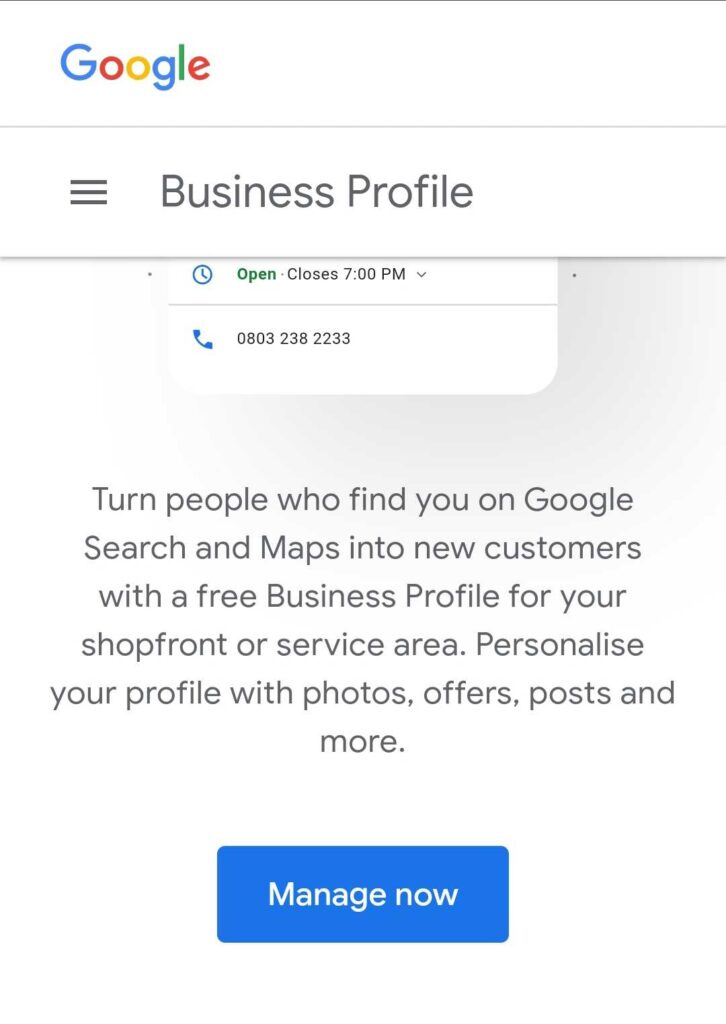
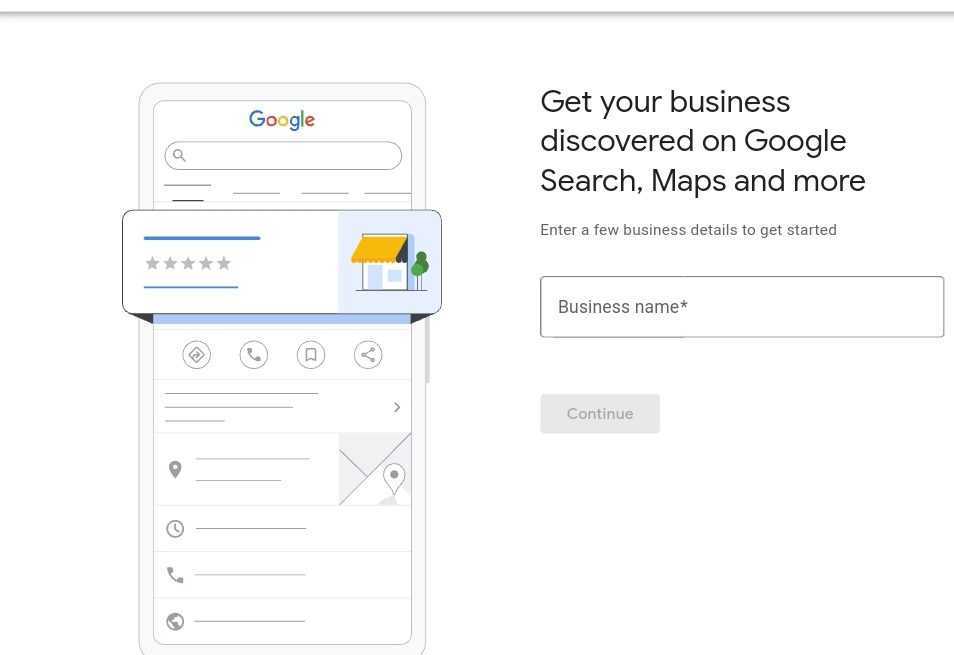
The next step is to enter your business name. Make use of the search bar to enter your Business name.
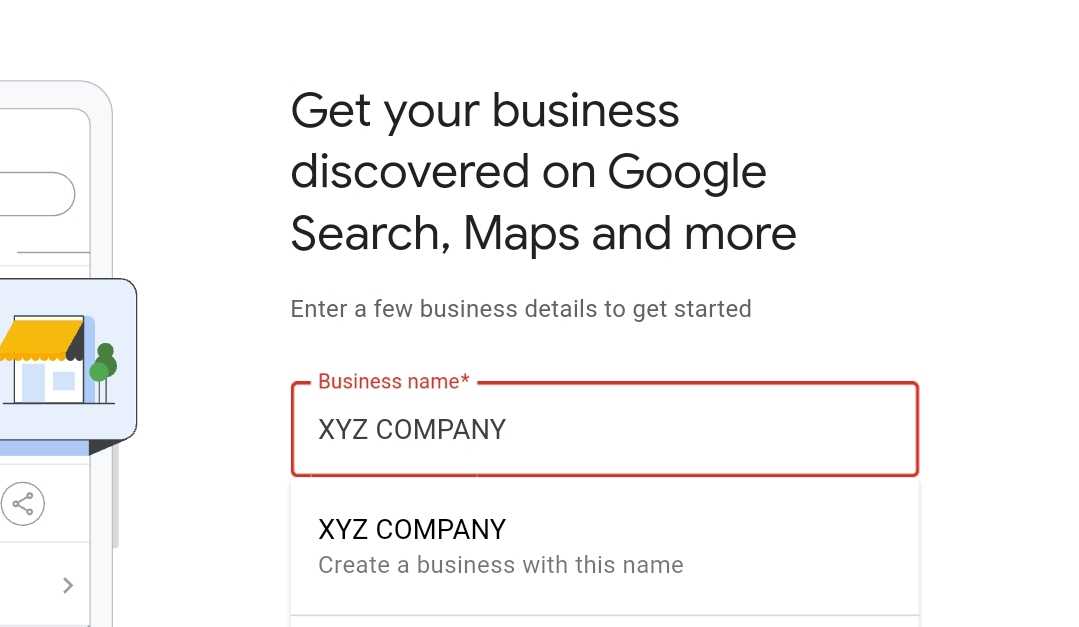
If your business name has not been created before, there is an option that states Create a business with this name, but if your business name exists and it is not claimed by anyone, you can click your business name in the search result and claim it and click on Next
After creating your business name, the next step is selecting the Business Type you want to operate and click on Next.

The next step is adding your Website and click Next. This is optional as you can choose to Skip the step and edit after creating your business address.
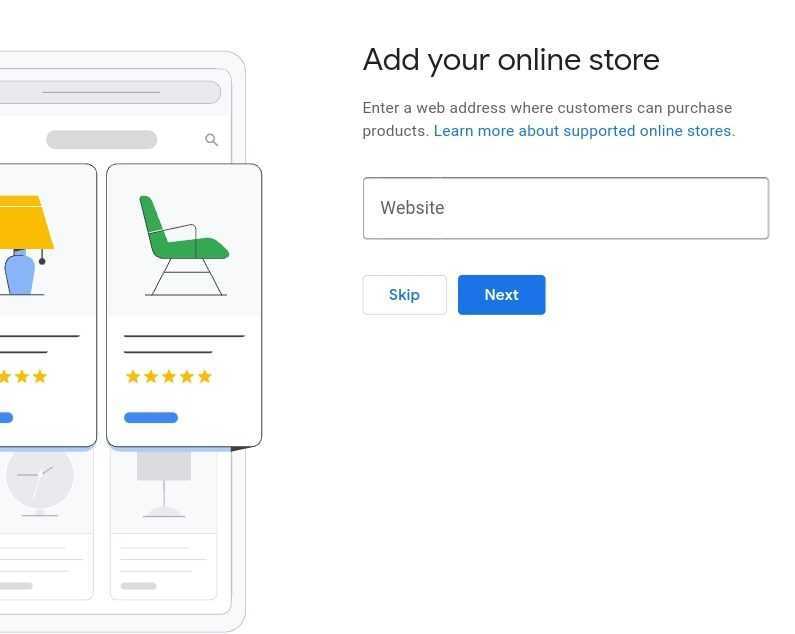
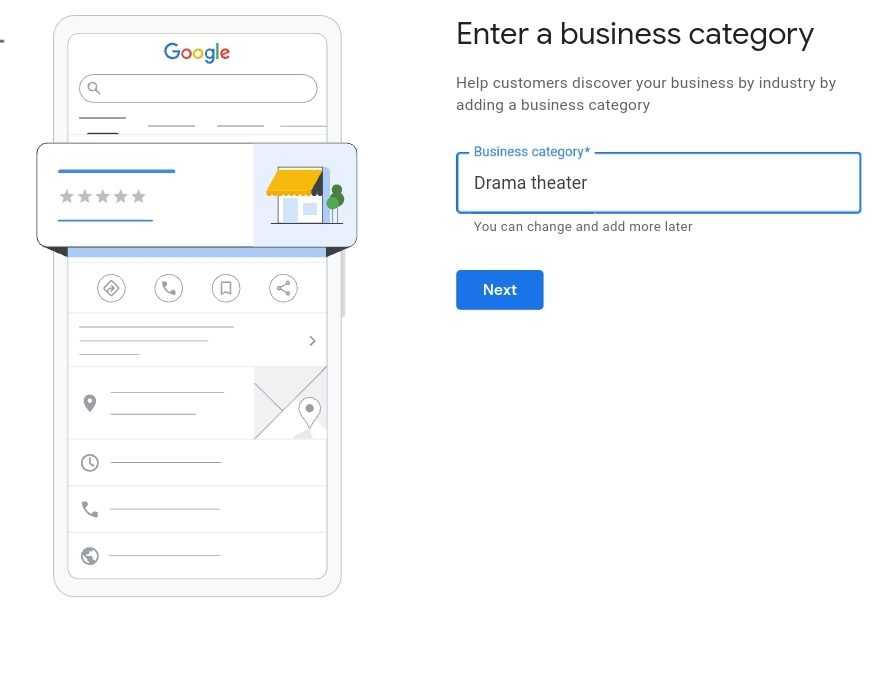
The next step is to choose your Business category. Enter the category closest to your business and click Next.
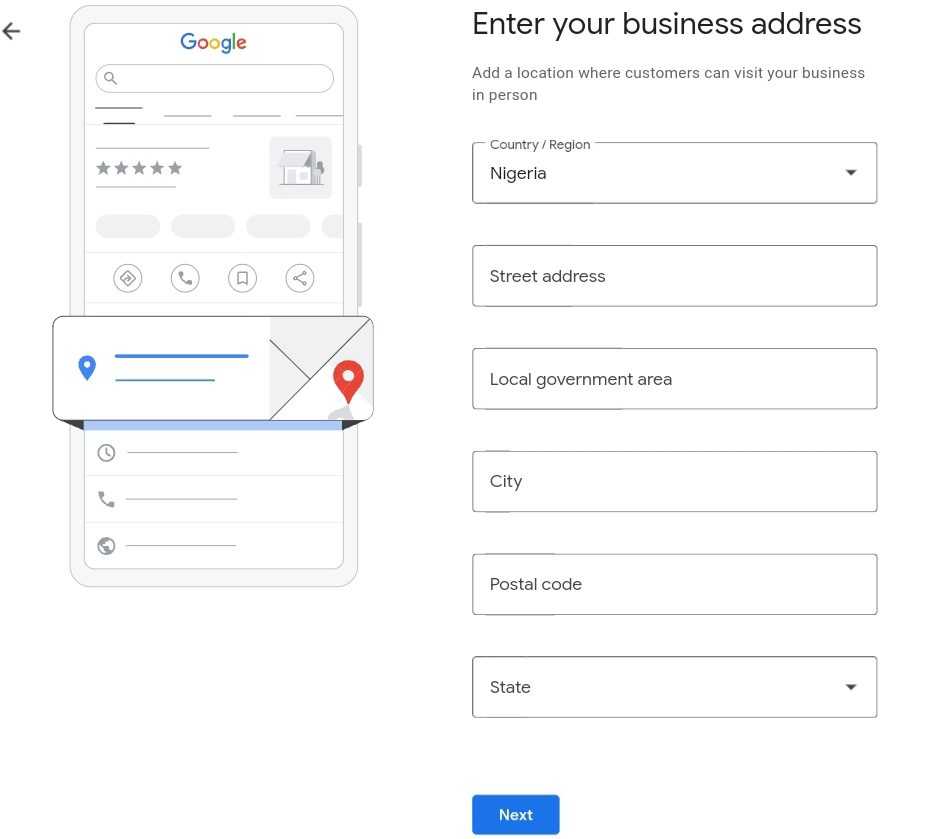
The next step is to fill your full Business address details; Country, State, City, Postal code, etc. Make sure to fill the correct details and the right location so that your verification can go smoothly and click Next.
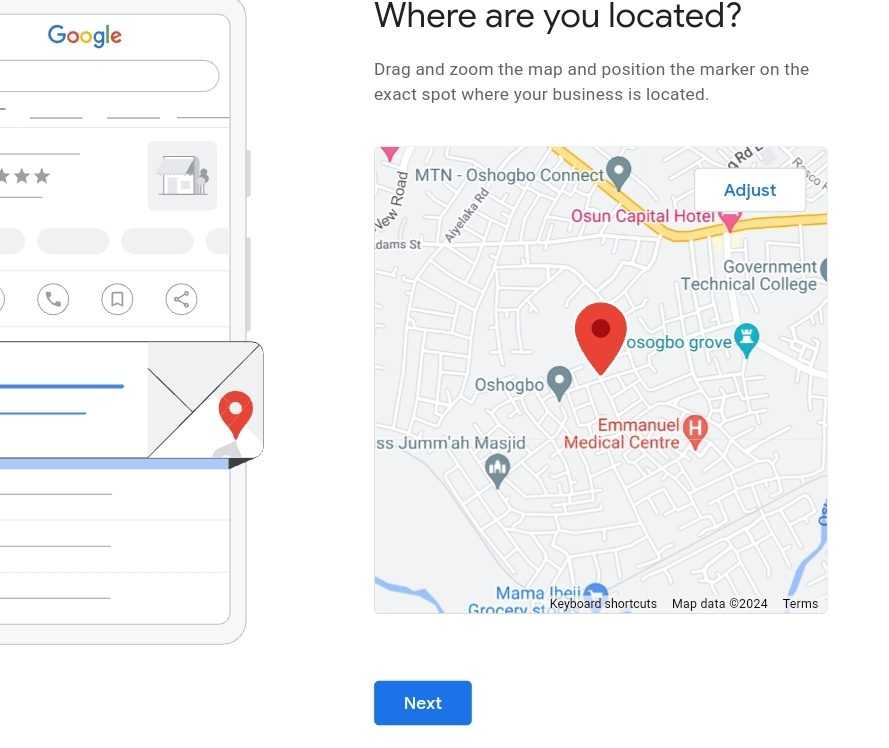
Mark your exact Business location on the map by making use of the Adjust column and click next.
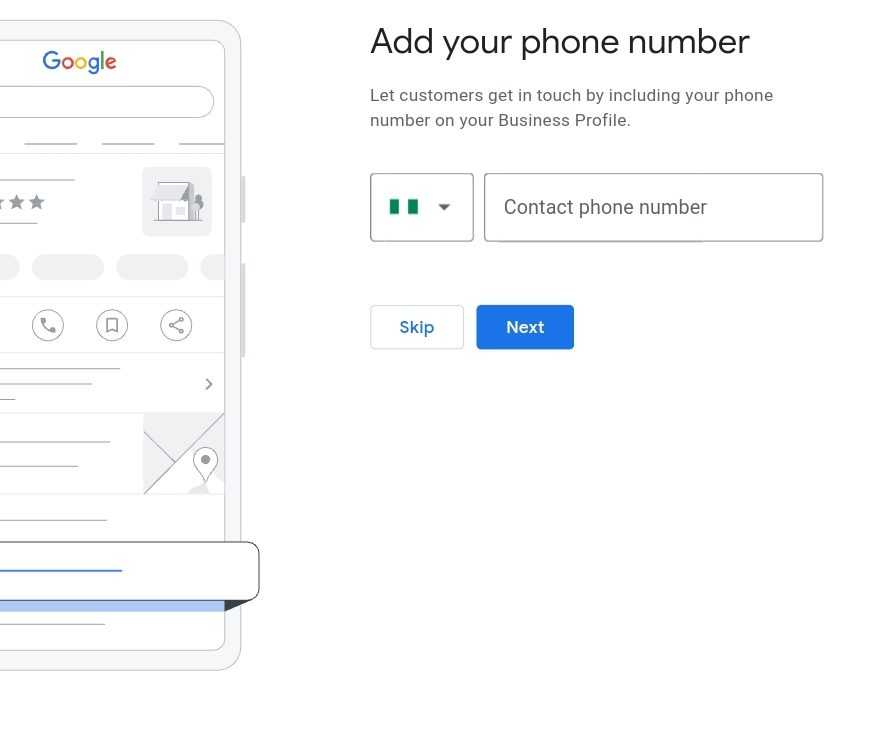
The next step is to add your Phone number, you can click on skip if you do not want to add your number or click Next. Make sure that your phone number is correct and active.
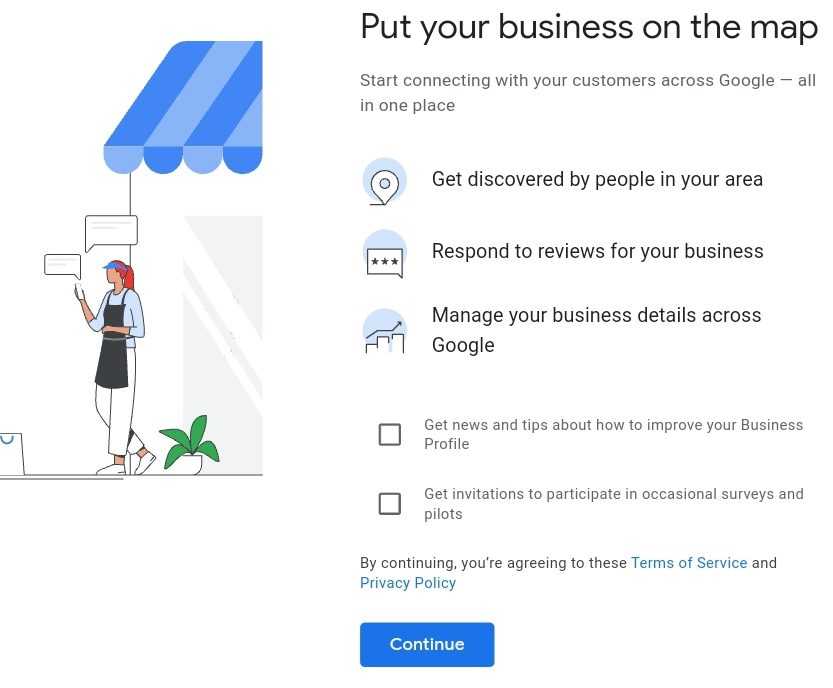
The next step is to Put your business on the map and click Continue. This is where you can start connecting with your customers/clients around you that need your services.
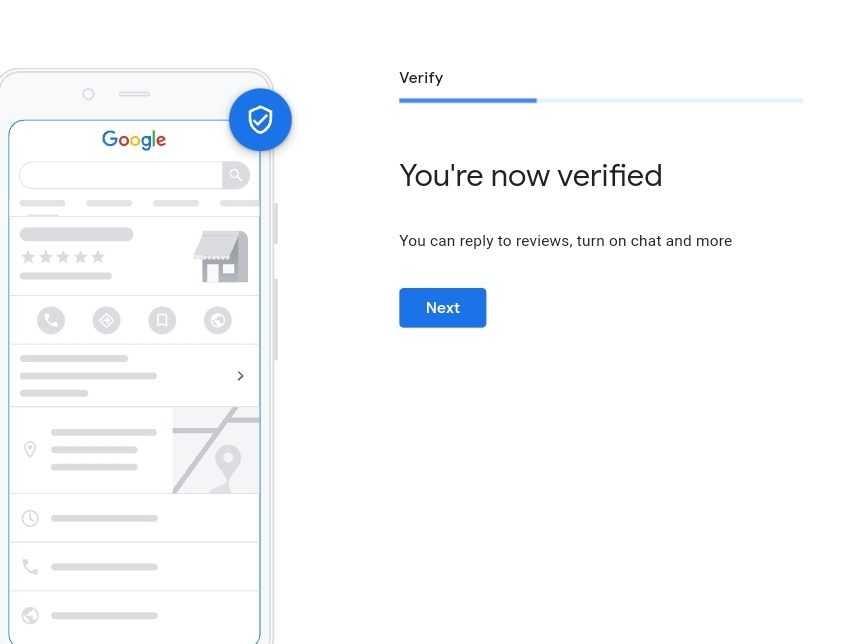
Then your business becomes verified on the Google map and then click on Next to customize your business profile
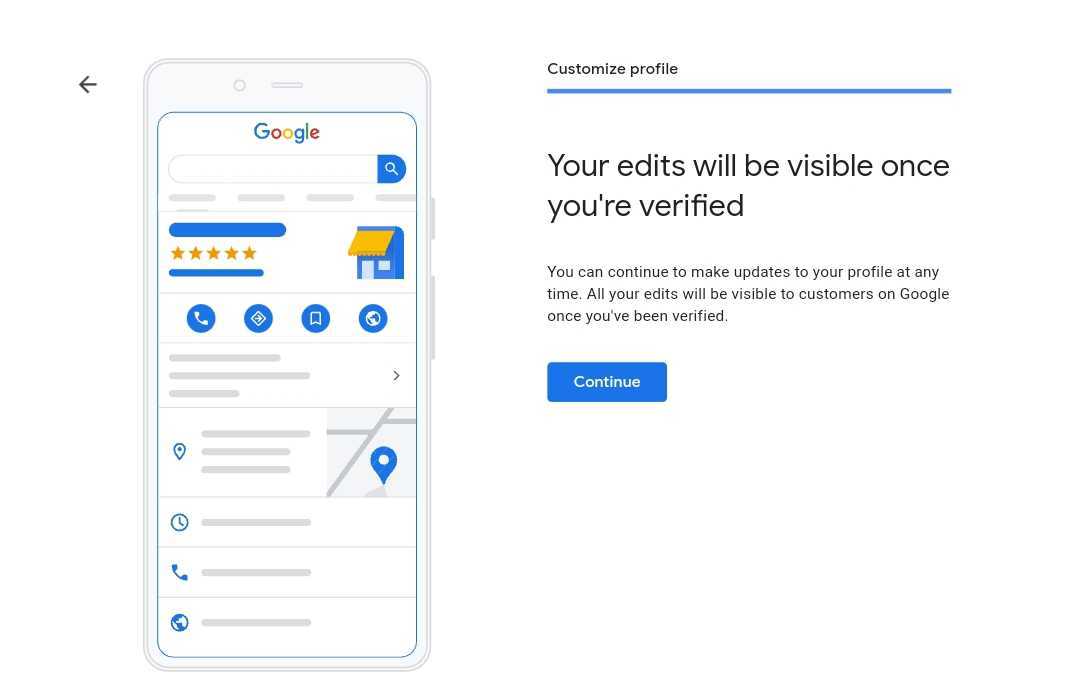
Then you can customize your business profile by adding your business hours, business description, images or pictures of your business, etc. After all this, your business address is now added on the Google map.
Read Also: Why SEO is important for your business & Website in 2025
Finally, you can add some changes or additional information to your business profile which will be visible to your customers/clients.
Tips to Get Your Home or Office Address Listed On Google Map Faster
- Provide Accurate Information: Make sure to give correct and complete details such as street number, postal code or cities.
- Use Google My Business(For Offices): If you are adding your business to the Google map, registering through Google My Business can hasten the process and improve your visibility in local search results.
- Be Patient: Google may take time to review your submission, but adding the correct and detailed information increases the chance of getting approval.
Conclusion
Adding your house or office address on Google map is a simple process that has many benefits. From increased visibility to easy navigation and direction, having your address on the Google map helps both individuals and businesses.
By following the steps in this article, you can make your home or office address easily accessible to everyone on google map and google search.
Now that you know how to add your home or office address to Google Maps, take a moment to add your location on the map and enjoy the convenience and visibility it brings.


